Understanding the AR Aging Report
Which of my invoices are actually overdue, and by how much?
Where to Find It
Click Aging Report at the top of Invoices, next to New Invoice. It's firm-wide by default — there's no per-case filter — because the point is to see everything you're owed across every client at once.
What Counts as Outstanding
The report only includes invoices with status Sent, Overdue, or Partially Paid. Drafts, fully paid invoices, and voided invoices are left out entirely — a draft hasn't been billed yet, so there's nothing to age. For a partially paid invoice, the amount shown is what's still owed, not the original face value.
The Buckets
Each outstanding invoice is placed into a bucket based on days past its due date: Current (not yet due), 1–30 Days, 31–60 Days, 61–90 Days, and 90+ Days. An invoice with no due date at all gets its own No Due Date bucket. Empty buckets don't clutter the page — only buckets with at least one invoice show up.
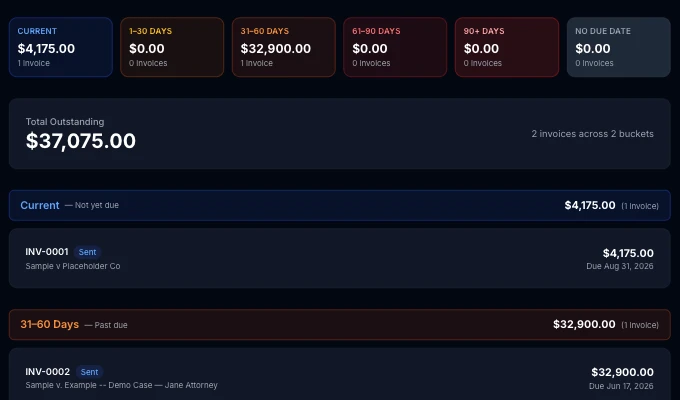
Above the bucket breakdown, a Total Outstanding figure rolls everything up into one number. Each invoice listed under a bucket links straight through to that invoice, so you can jump from “this is 45 days late” to actually following up without a second search.