Categorizing Cases with Case Types
Can I categorize my cases — like Expert Witness vs. IME vs. DME — and filter by it?
Built-In Case Types
Every case has a Case Type field on the case form, right below Engagement Type. Four built-in options cover the most common ways expert witness work gets categorized: Expert Witness, IME (Independent Medical Examination), DME (Defense Medical Examination), and LNC (Legal Nurse Consulting). It defaults to No case type — setting one is entirely optional.
Don't confuse this with Engagement Type just above it. Engagement Type is about who retained you on this specific case — Plaintiff, Defense, or Neutral. Case Type is about what kind of engagement it is. The two are independent; a case can be any combination of both.
Adding Your Own Type
If the four built-in types don't fit how you categorize your work, pick + Add custom type... at the bottom of the Case Type dropdown. It swaps in a text field right there on the form — type a name and click Add to create it and apply it to the case in one step.
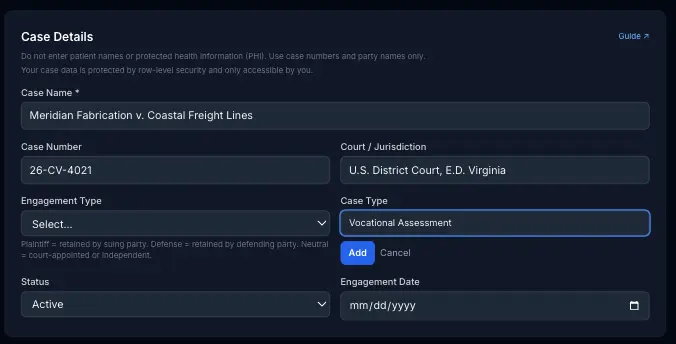
Custom types are yours alone — they show up in the picker on every case you create or edit going forward, right alongside the four built-in ones.
Managing Custom Types Later
Once you've created a custom type, it also appears in a Case Types card on the My Practice settings page, alongside your custom activity and expense types. Rename or delete it from there.

Renaming a custom type updates it everywhere, including on cases that already use it. Deleting one doesn't touch existing cases — a case that already has the type keeps showing it, it just won't be offered as an option for new cases anymore.
Filtering Your Case List
On the Cases list, an All case types dropdown sits next to the status filter — pick a type to narrow the list down to just those cases. Any case with a type set also shows it as a plain text label alongside the case number, so you can scan the list at a glance without opening the filter.

Related guides