Creating and Closing a Case
I'm starting a new engagement — what actually happens when I create a case, and how do I mark one as done?
Only Case Name Is Required
Cases → New Case opens a single page — everything on it saves at once, there's no multi-step wizard. Case Name is the only required field. Case Number, Court/Jurisdiction, Engagement Type (Plaintiff, Defense, or Neutral), and Engagement Date are all optional and can be filled in later from the edit page.
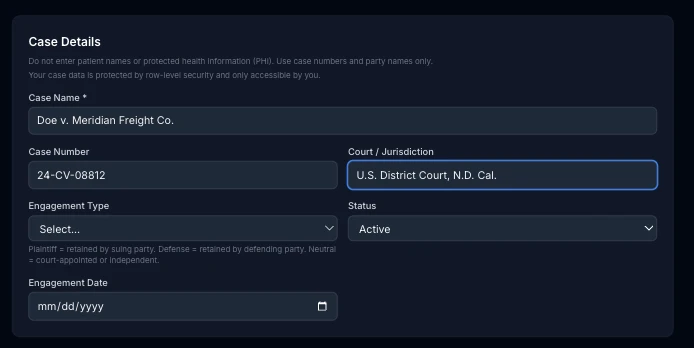
A PHI warning sits above the form as a reminder: use case numbers and party names only — never patient names or protected health information. Status defaults to Active on a new case; the other options are Pending and Closed.
Rates Inherit From Your Defaults
The Billing Rates for This Case section pre-fills from the per-activity default rates set in My Practice → Rates — you're not starting from zero on every case. If you've already set defaults, this section starts collapsed with a Customize rates for this case → link; expand it to override any rate just for this engagement, or leave it alone to bill at your standard rates. You can also add a brand-new activity type inline without leaving the form.
Below that, optional sections let you flag the case as split-billed among multiple payers by default, record a payment you've already received (as an advance or a retainer — see Recording Payments & Case Credit for the difference), and add retaining and opposing attorneys.
Closing a Case Is Just a Status Change
There's no dedicated “close this case” button, and no delete option for a real case — status is the only lifecycle control. Change it either on the edit form, or faster: click the colored status pill next to the case name on the case's own detail page.
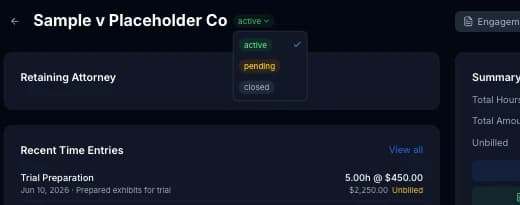
Closing a case doesn't hide it, lock it, or block new time entries against it — Cases still shows closed cases by default unless you filter the list to a specific status, and every action on the case detail page (Log Time, Generate Invoice, Add Expense) keeps working exactly as before. Logging time from the Time Log page, from a case's own detail page, or from its row on the Cases list all work against a closed case the same as an active one. The one real effect: the Quick Time Entry dropdown on the Dashboard only lists Active cases, so a closed case won't show up there — use one of the other entry points instead.