Highlighting a PDF and Finding Your Highlights Later
Can I mark up a PDF in ExpertPractice and find the parts I highlighted later?
Yes. When a PDF is open in the viewer, you can highlight any text on the page, add a note to it, and come back to it any time from the Highlights panel.
Adding a Highlight
- Select the text you want to highlight, the same way you would in any PDF reader.
- A small bar with four colors appears under your selection: yellow, green, blue and pink.
- Click a color. The highlight is saved right away and appears in the panel.

Prefer the keyboard? Select the text, then use the Highlight selection color buttons at the top of the Highlights panel. They light up whenever text is selected. To drop a selection without highlighting it, press Esc.
Adding a Note
Every highlight in the panel has an Add a note box under it. Type your note and click anywhere outside the box, and it's saved. Notes can be up to 2,000 characters. To remove a note, clear the box.
The Highlights Panel
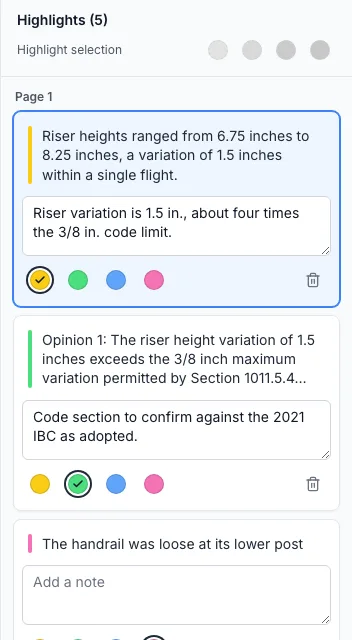
The panel on the right lists every highlight in the document, grouped by page and in the order you made them. Its heading shows how many you have, for example Highlights (5).
- Jump to a highlight: click its text in the panel. The viewer scrolls to it and briefly outlines it on the page, even if it's many pages away.
- Change the color: click a different color under the highlight. The current color has a check mark.
- Delete a highlight: click the trash icon and confirm. The highlight and its note are removed from the document.
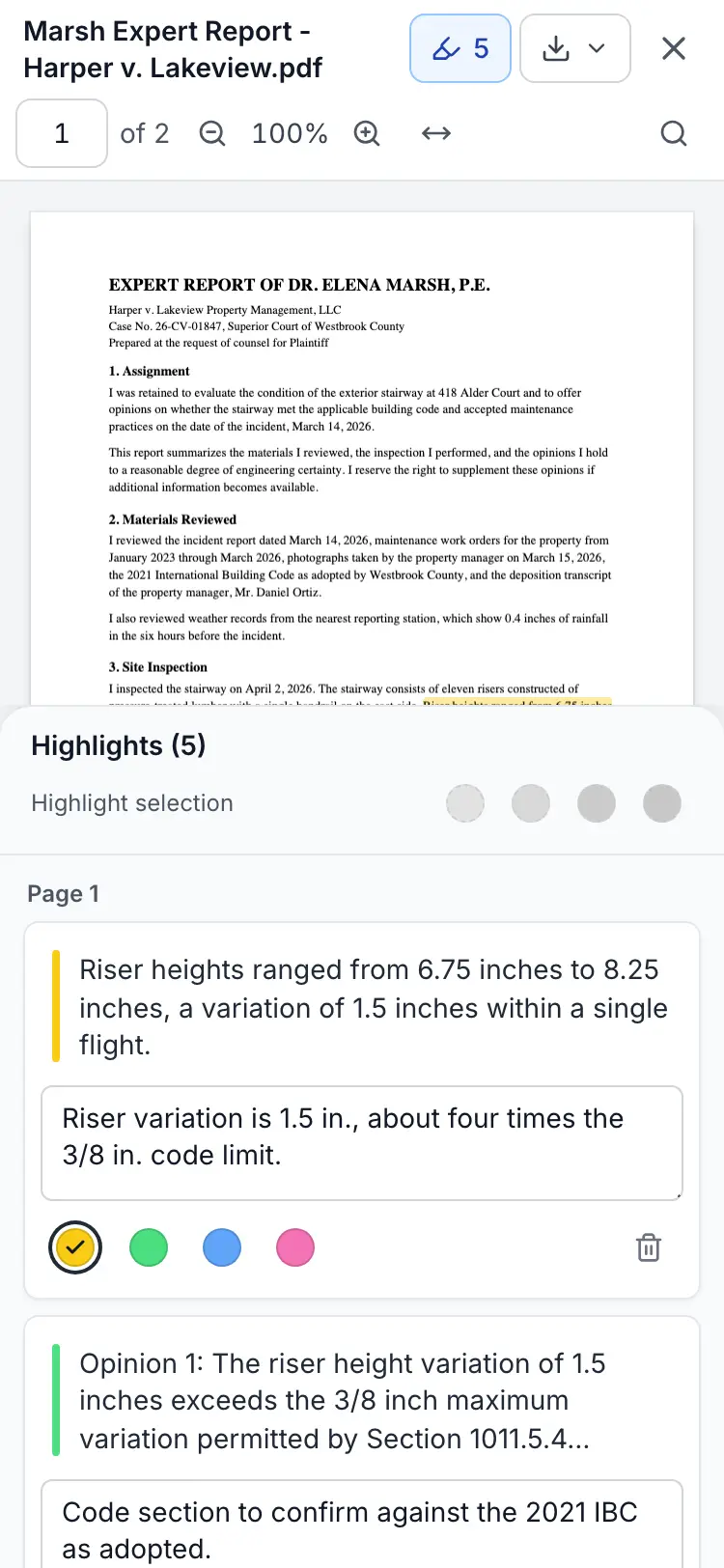
On a phone, tap the highlighter button in the viewer's toolbar to open the same panel at the bottom of the screen.
Saved Automatically, and Private to You
There's no save button. Highlights, colors and notes are saved as you make them, and they're there the next time you open the document, on any device you sign in on. Your highlights and notes are only visible to you.
Highlights belong to that document. If you delete the document, its highlights and notes are deleted with it, and uploading the same file again starts with no highlights.
Good to Know
- Scanned documents can't be highlighted. A scanned PDF is usually just pictures of pages with no text inside, so there's nothing to select. The viewer shows a note when it opens one.
- Selections across pages become one highlight per page. If you select from the bottom of page 1 to the top of page 2, you'll see one highlight under Page 1 and one under Page 2, and each can have its own note. For a long selection that spans several pages, scroll through the whole selection first so every page is loaded. Otherwise the viewer tells you that some pages in your selection aren't loaded yet, and part of it may not be highlighted.
- Very long selections may be only partly highlighted. If that happens, the viewer tells you, and you can highlight the rest in smaller pieces.
- Highlights are drawn on top of the document in ExpertPractice (EP). Your original file is never changed. To get a copy with your highlights in it, see Downloading a PDF With or Without Your Highlights.