Downloading a PDF With or Without Your Highlights
Can I download a PDF with my highlights, and will my notes be included?
You choose. When you download a PDF, ExpertPractice (EP) offers up to three versions, and your notes are only included if you pick the option that says so.
Where to Find the Download Options
- In the viewer, click Download ▾ in the toolbar.
- On the Documents page, click the download button on the PDF's row (the download icon followed by a down caret ▾). Other file types show only the download icon, with no caret.
From a case's page, click the PDF's name to open it, then use Download in the viewer.
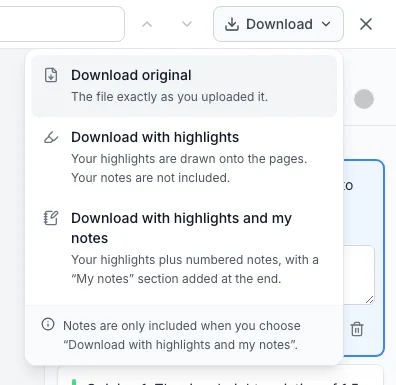
The Three Options
- Download original: the file exactly as you uploaded it, with no highlights and no notes. This option is always there.
- Download with highlights: a copy with your highlights drawn onto the pages in the colors you picked. Your notes are not included. This option appears once the document has at least one highlight.
- Download with highlights and my notes: a copy with your highlights, plus a small numbered badge in the page margin beside each highlight that has a note, and a My notes section added at the end. Each entry there lists the number, the page, the highlighted text and your note. This option appears once at least one highlight has a note.
Your notes are only included when you choose Download with highlights and my notes. The other two options never include them, so a copy you send to someone else won't contain your notes unless you picked that option.
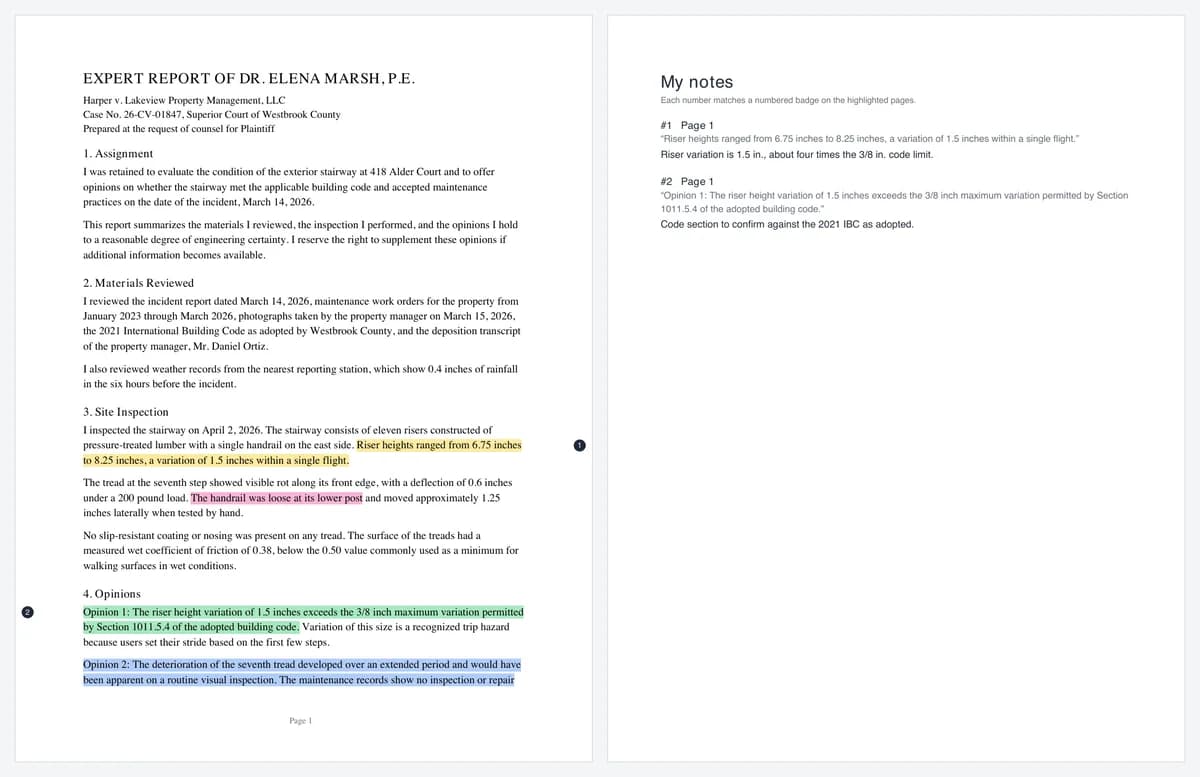
What You Get
- The downloaded copy is a separate PDF file. The original file in EP is never changed, and your highlights and notes in EP stay as they are.
- The highlights are part of the pages in the copy, so they look the same in any PDF reader.
- File names show which version you have. A document named Expert Report.pdf downloads as Expert Report.pdf, Expert Report (highlighted).pdf or Expert Report (highlighted with notes).pdf. If you renamed the document, the new name is used.
- A copy reflects your highlights at the moment you download it. If you add or change highlights later, download again to get an updated copy.
- The My notes section uses a standard PDF font, so some characters, such as emoji or non-Latin scripts, appear as a question mark there.
PDFs That Block Editing
Some PDFs are protected by whoever created them so they can't be changed. You can still open and highlight them in EP, but we can't add highlights to a downloaded copy. If you choose a highlighted option for one of these files, you'll see This PDF can't be modified. You can still download the original. The Download original option still works.
Other File Types
DOC, DOCX, JPG and PNG files can't be highlighted, so they have a single download button that downloads the original file.