Viewing a PDF Without Leaving ExpertPractice
Can I open a PDF in ExpertPractice without downloading it again?
Yes. Any PDF you've uploaded opens in a viewer built into ExpertPractice (EP), so you can read it, search it and highlight it without saving a copy to your computer first.
Opening a PDF
Click the PDF's name. This works in two places: the Documents page, and the Documents card on a case's page. The viewer opens over the page you were on, and closing it brings you right back there.
You can also open a PDF from a case's Activity feed. Click the row for the document and the Documents page opens with that PDF already in the viewer.
Viewer Controls
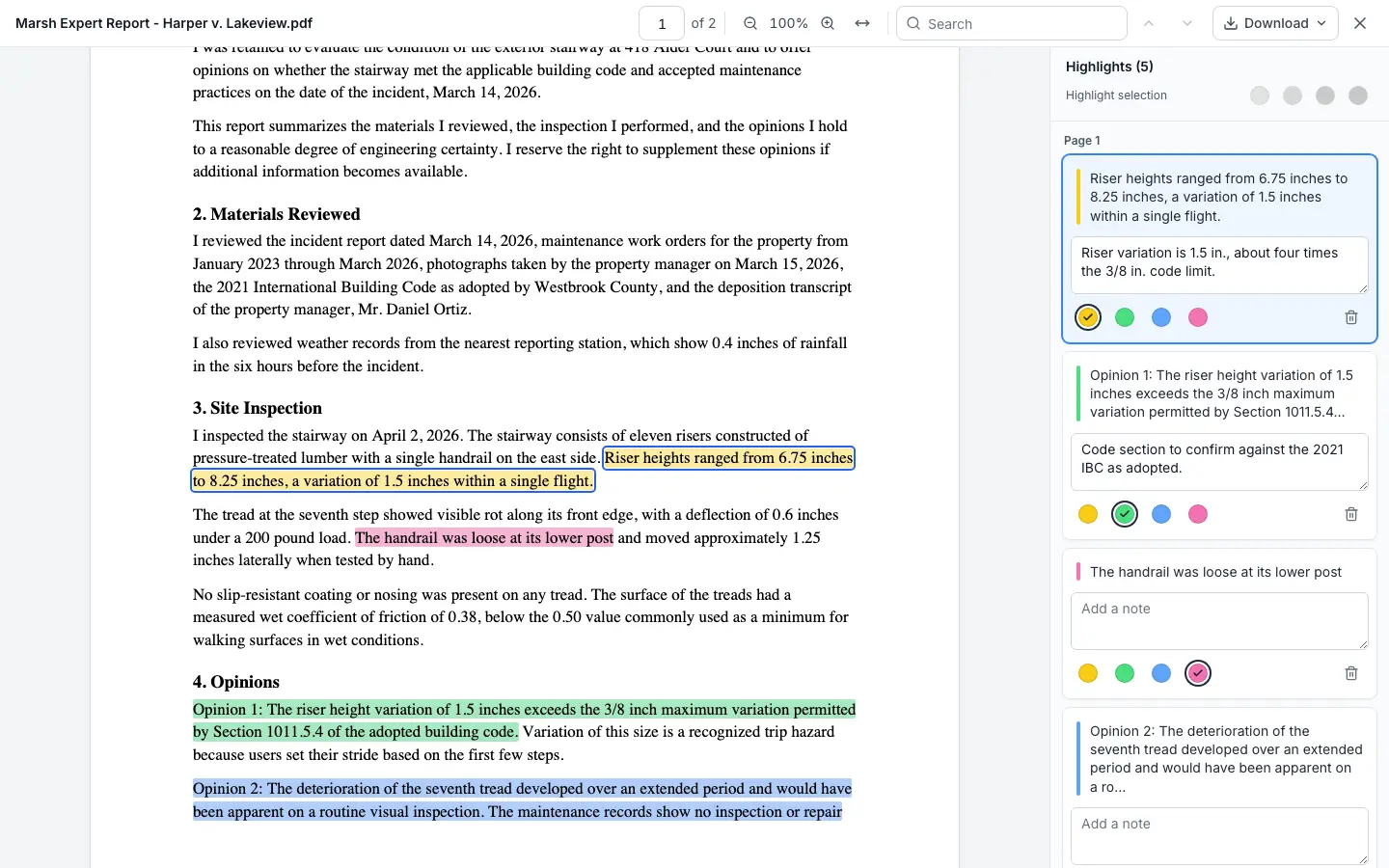
The toolbar along the top has everything you need to move around the document:
- Page number: shows the page you're on and how many pages there are. Type a page number and press Enter to jump to it.
- Zoom out and zoom in: step from 50% up to 300%.
- Fit to width (the double arrow): returns to 100%, the standard fit-to-width size (pages are capped at a comfortable reading width on large screens).
- Search: type a word or phrase to find it anywhere in the document. The box shows which match you're on, like 2 of 4. Press Enter or use the arrows to go to the next match, and Shift+Enter to go back.
- Download: saves the file, with or without your highlights. See Downloading a PDF With or Without Your Highlights.
- Close (the X), or press Esc.

The text on the page is real text, so you can select it and copy it just like in any other PDF reader. To highlight a passage instead, see Highlighting a PDF and Finding Your Highlights Later.
Which Files Open in EP
Only PDFs open in the viewer. On the Documents page and the case card, a PDF's name is a link you can click. DOC, DOCX, JPG and PNG files show their name as plain text, and you open them by downloading them with the download icon on the Documents page. You can still rename any of them.
Scanned PDFs
A scanned PDF is usually just pictures of pages, with no text inside it. It still opens, and you can read it, zoom and download it. Because there's no text inside, you can't select or highlight anything and search won't find any words. The viewer shows a note at the top saying so.
Large PDFs
Files can be up to 25MB. A large PDF can take a few seconds to open, and pages are drawn as you scroll to them.
If a PDF Won't Open
Some PDFs can't be shown in the viewer, for example a damaged file. When that happens, the viewer says We couldn't open this PDF here and offers a Download button, so you can open the file in the PDF reader on your computer. Your file in EP is not affected.
On Your Phone
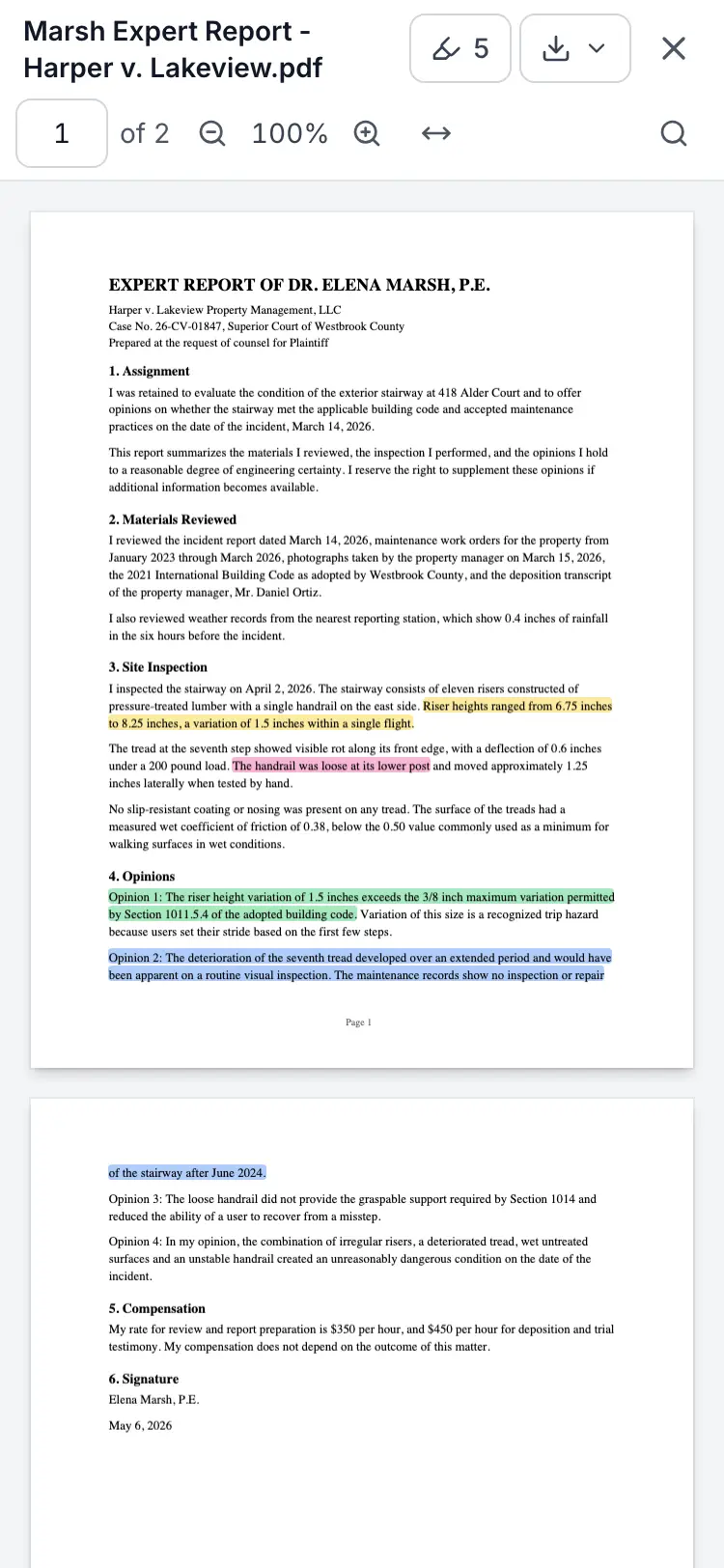
The viewer works on phones and tablets too. On a small screen the toolbar fits on two rows. Tap the magnifying glass to search, and tap the highlighter button (it shows how many highlights you have) to open your highlights in a panel at the bottom of the screen.