Importing Your Existing Time & Billing Data
I've got years of time entries in a spreadsheet — do I really have to retype all of it?
Upload What You Already Have
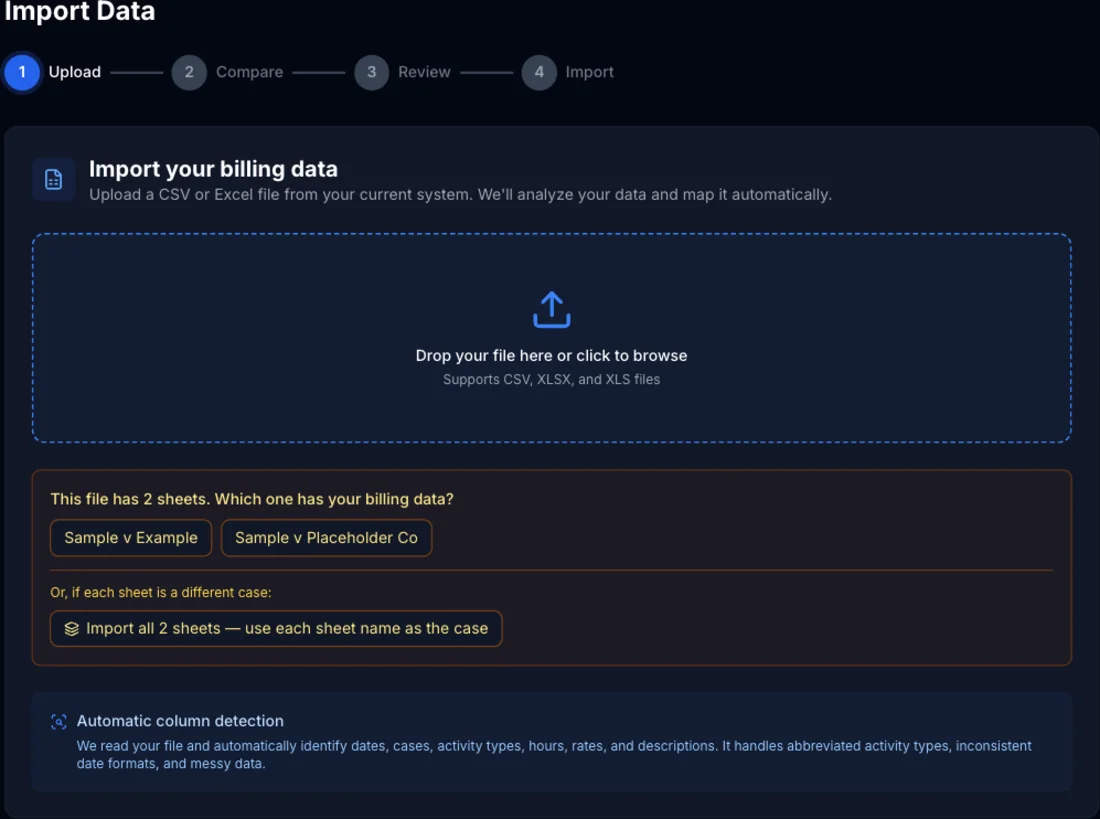
Import Data in the sidebar takes a CSV, XLSX, or XLS file exported from whatever you're using now — a spreadsheet, another billing tool, anything with rows of dates, cases, hours, and rates. You don't need to reformat it first; the import wizard is built to handle messy, inconsistent exports as they actually come out of other systems.
If you upload an Excel workbook with more than one sheet, the wizard asks which one has your billing data before it analyzes anything — or, if each sheet is actually a different matter, you can import all of them at once and it'll use each sheet's tab name as the case name.
It Maps Your Columns For You
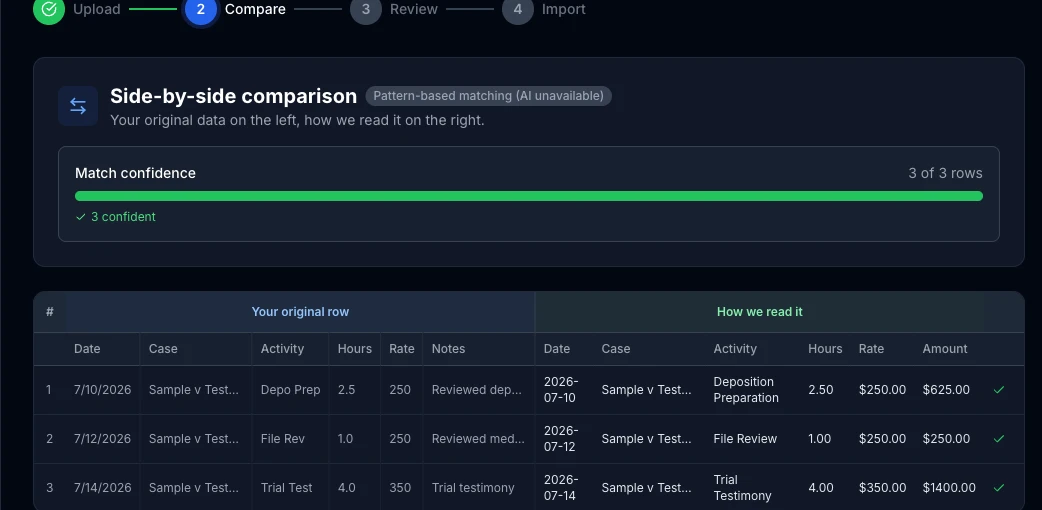
After upload, you get a side-by-side comparison — your original rows on the left, exactly how ExpertPractice read them on the right — plus a match-confidence summary so you can tell at a glance whether anything needs a second look.
Every column mapping is editable below the comparison — if Notes should have mapped to something other than Description, or a column got missed entirely, just pick the right one from the dropdown and the comparison above updates immediately:
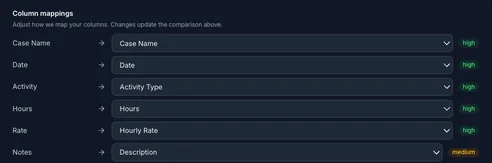
The wizard detects these columns automatically:
- Case Name — required
- Date — required
- Hours — required
- Activity Type — optional (abbreviated text like "Depo Prep" gets matched automatically)
- Rate — optional (hourly rate)
- Description — optional
- Case Number — optional
- Court — optional, case creation only
- Engagement Type — optional, case creation only
- Attorney Name — optional, case creation only
- Attorney Firm — optional, case creation only
The first seven columns map to each time entry. The last four—court, engagement type, attorney name, and attorney firm—become part of the new case record itself and are only used when creating a new case, not individual entries.
If any rows are missing an hourly rate, a Rates card appears on this same step so you can fill them in for the whole case/activity group at once, instead of editing rows one at a time after the import.
When It's Not Sure, It Asks
Some spreadsheet values are genuinely ambiguous — a date like "sometime in June" that can't be parsed, or a column just labeled $ that could be an hourly rate or a total amount. Rather than guessing silently, the wizard collects these into a short "A few quick questions" screen before the comparison, so you resolve them once instead of hunting for wrong values after the fact.
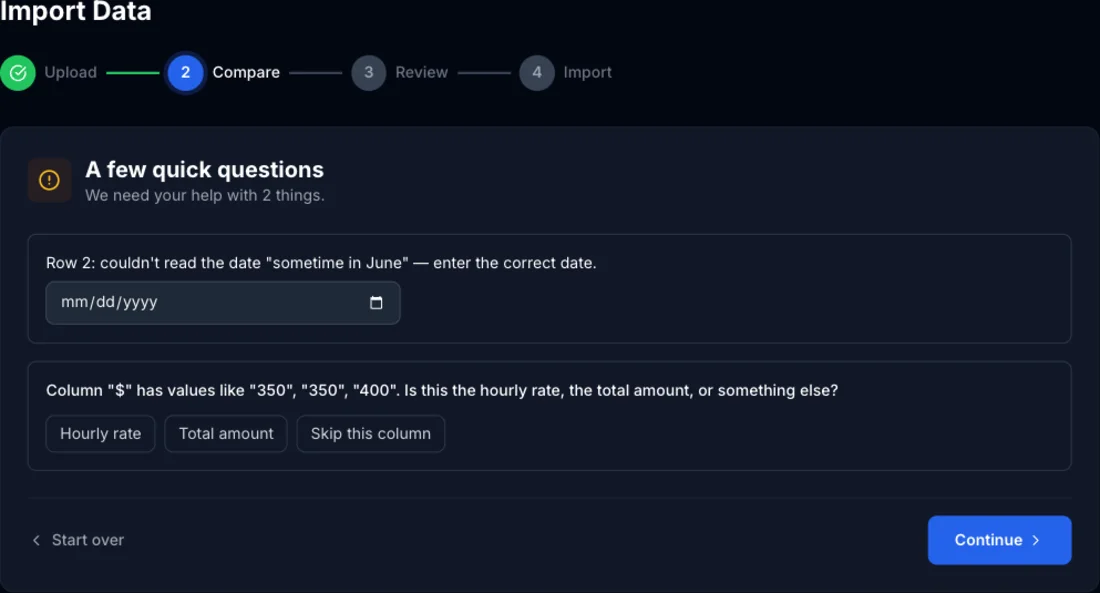
This screen only appears when something is genuinely unclear — clean, well-labeled spreadsheets go straight to the comparison step.
Abbreviated Activity Types, Handled
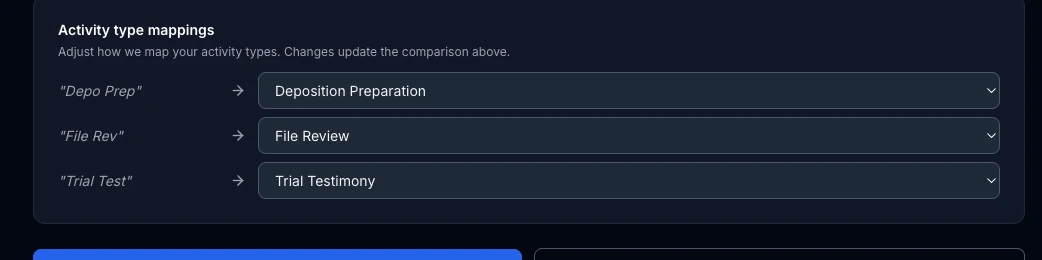
Real billing exports rarely spell things out — "Depo Prep," "File Rev," whatever shorthand you've used for years. The wizard maps these to ExpertPractice's actual activity types on its own, and shows you exactly what it matched each one to, so you're confirming rather than re-entering:
Review, Then Confirm — Nothing Is Written Until You Say So Twice
The Review step shows the exact final data — every row, fully mapped — with two options: Import into ExpertPractice, or Download cleaned CSV if you'd rather double-check the cleaned-up file yourself first before committing to anything.
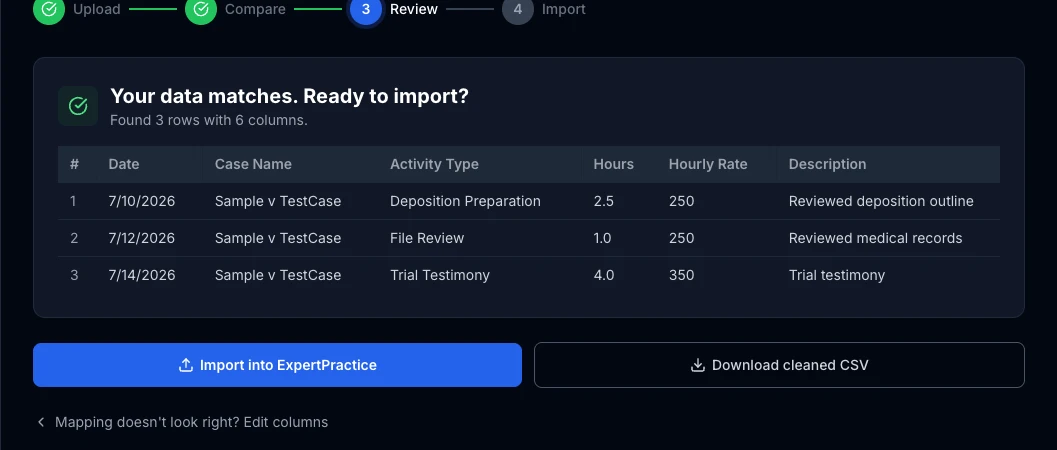
Clicking Import into ExpertPractice doesn't import immediately — it opens a Confirm import step with a summary (entries, cases, hours, total billable) and, for each case name in your file, a check against your existing cases. A close match shows "Did you mean ‘X’?” with a Use this button so you don't end up with a duplicate case from a slightly different spelling; anything genuinely new is flagged "Will create new case."
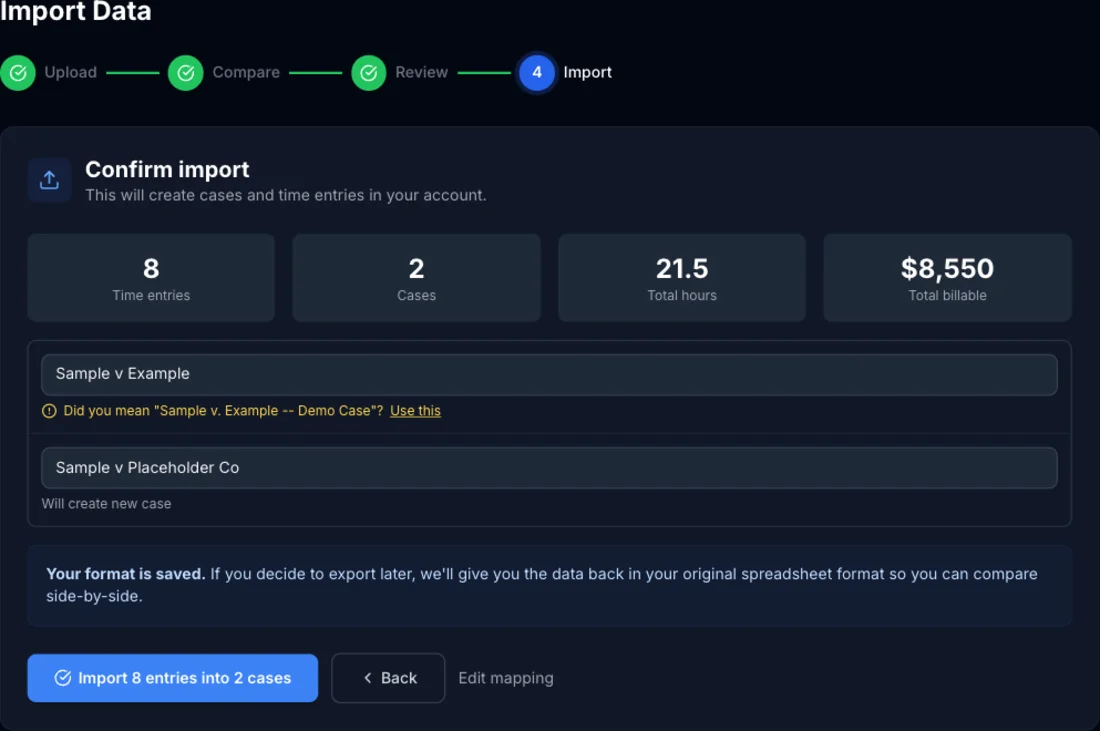
From here you can still go Back to Review or click Edit mapping to jump straight back to the comparison step — nothing is imported until you explicitly click Import N entries into M cases on this final screen.
Related guides