Managing Your Billing & Subscription
My trial is ending — what happens if I don't upgrade, and how do I actually cancel later?
The 14-Day Trial
Every account starts with a 14-day free trial, no credit card required. A banner tracks the countdown across the app: dismissible while you have more than a week left, and non-dismissible (turning amber in the final 3 days) as it winds down. Everything works normally during the trial — there's no feature gate, only a time limit.
Upgrading
Go to Settings → Billing to see your plan and subscribe. There are two options — Monthly and Annual (20% cheaper, billed yearly) — and clicking Subscribe hands off to Stripe Checkout to collect payment.
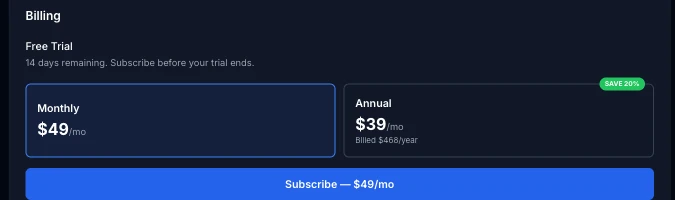
After you complete checkout, ExpertPractice shows a brief “Activating your subscription…” state while it waits on Stripe's confirmation, then unlocks automatically — no page reload needed.
Changing or Canceling
Once you're subscribed, the Billing card shows a Manage Subscription button instead of the plan picker. This opens the Stripe billing portal — the same place you update your card, switch between Monthly and Annual, download receipts, and cancel. There's no in-app cancel button; all of that lives in the Stripe portal by design, so your payment details never touch ExpertPractice's own servers.
If Your Trial Runs Out
An expired trial doesn't delete or hide anything. You can still open Settings and Dashboard normally, and every other page still renders — dimmed and read-only — behind a banner asking you to subscribe. Nothing is lost; the moment you upgrade, the same data is fully interactive again.