Logging Recurring & Multi-Day Time Entries
I did the same task every day this week — do I really have to create seven separate time entries?
Turn On Repeat
On the Log Time form, check Repeat this entry and the single Date field is replaced by a date picker below the form — the rest of the entry (case, activity type, hours, rate, description) still applies to every date you select, since it's the same underlying task logged multiple times.
Repeat is only available when creating a new entry, not when editing an existing one.
Two Ways to Pick Dates
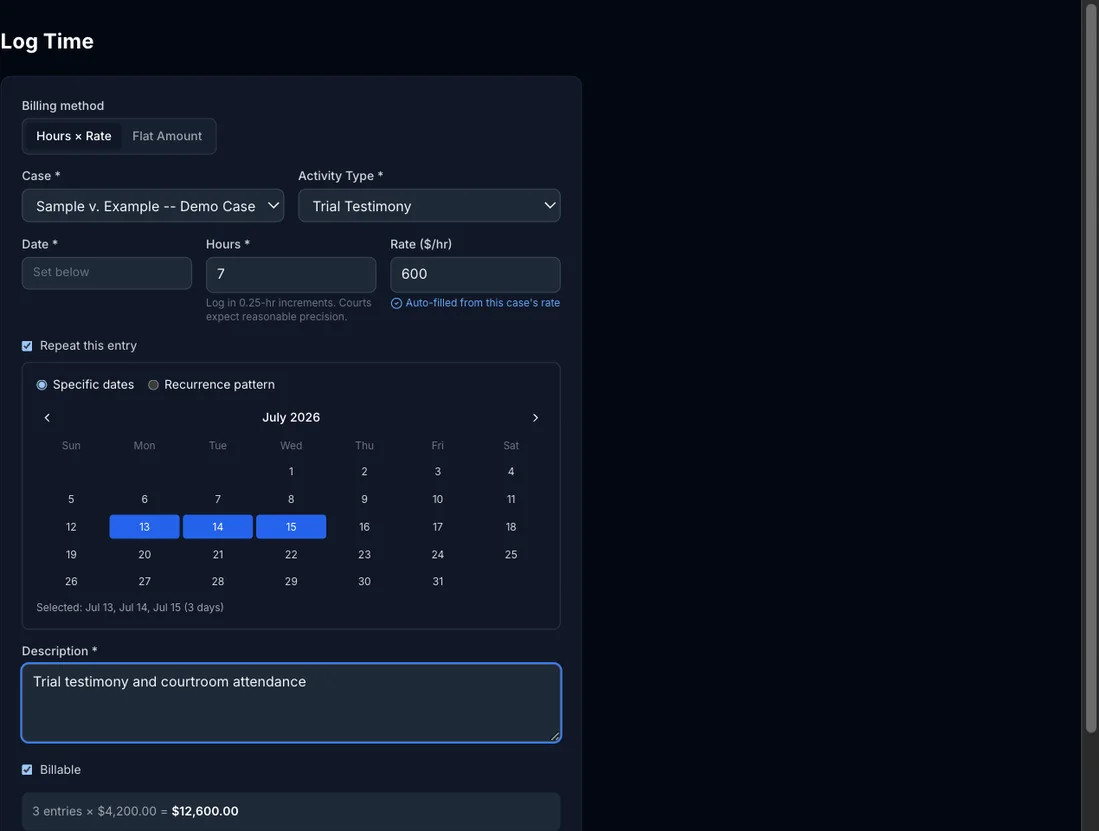
Specific dates gives you a month calendar — click each date you worked to toggle it on, useful when the days aren't evenly spaced (a trial that ran Mon/Tue, skipped Wed, resumed Thu/Fri).
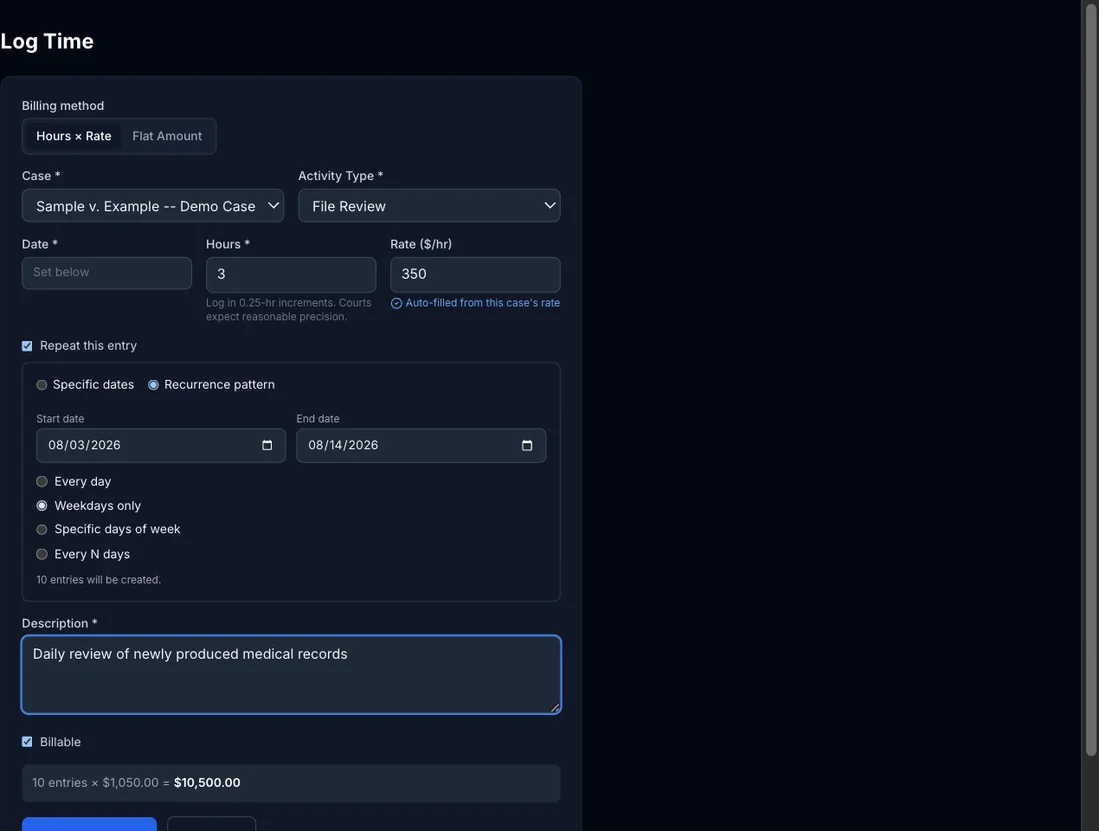
Recurrence pattern is faster for a real stretch of consistent work — set a start and end date, then choose Every day, Weekdays only, Specific days of week, or Every N days. The form tells you exactly how many entries the pattern will create before you submit anything.
Either way, this creates real, individual time entries for each date — not one combined entry — so each day still shows up on its own in the Time Log and can be edited or deleted independently later.
Editing or Deleting the Whole Series
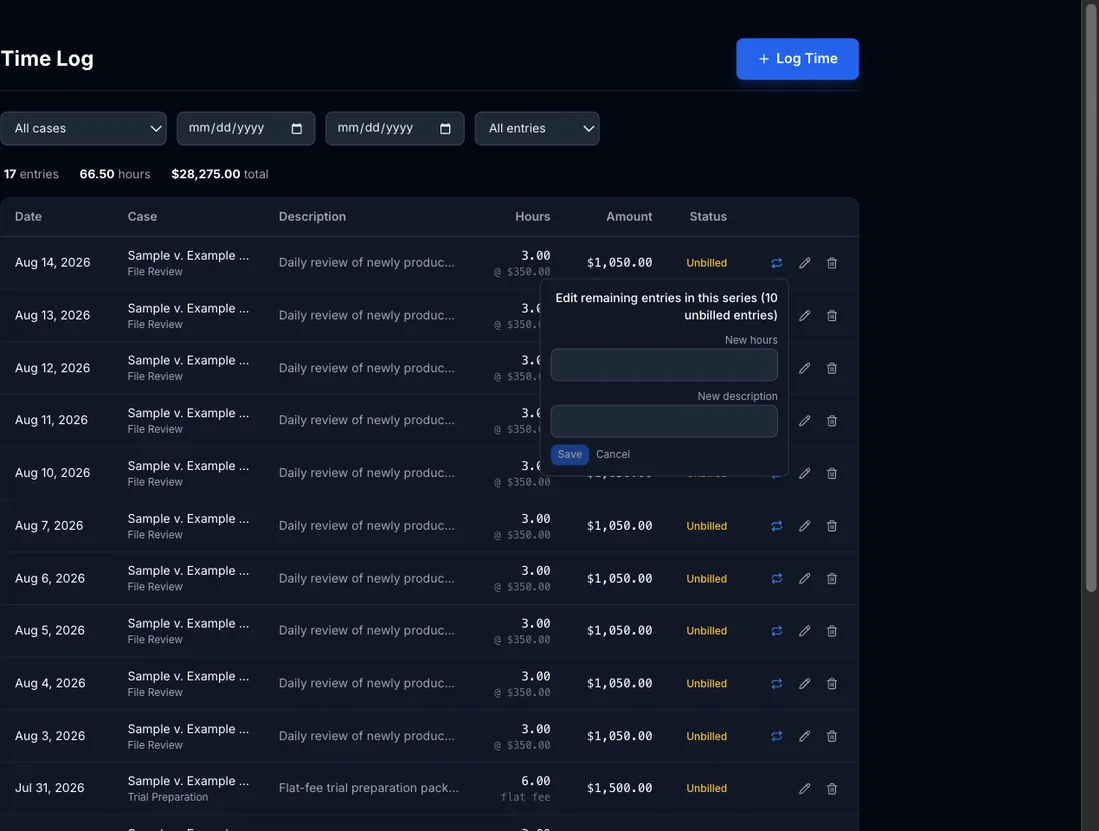
Entries created together are tagged as a batch. In the Time Log, a small repeat icon next to any entry that's part of a series opens a menu with Edit remaining in series and Delete remaining in series — so a correction to hours or the description only has to happen once, not once per day.
What Happens Once an Entry Is Invoiced
Series edits and deletes only ever touch unbilled entries. If some days from a series have already been invoiced, they're silently skipped and you get a message like "Updated 6 entries. 4 were already invoiced and left unchanged" — your billing history stays intact even if you need to fix hours on the rest of the series later.
Related guides