Tracking Daubert & Frye Challenges
Opposing counsel wants my track record on Daubert challenges — where do I find that?
Adding a Challenge
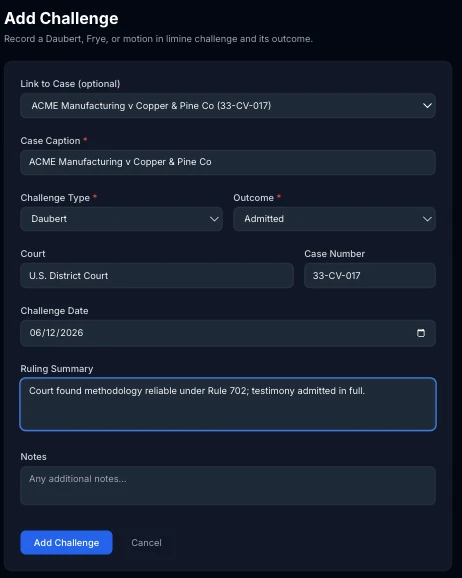
Challenges, in the sidebar under Expert Credentials, records every Daubert, Frye, or motion in limine challenge to your testimony and its outcome. Click Add Challenge and fill in the case caption, challenge type, and outcome — the only three required fields. Court, case number, challenge date, a ruling summary, and notes are all optional, for whatever detail you have on hand.
Linking to a Case (or Not)
Link to Case is optional. Pick one of your existing cases and the case caption, court, and case number all pre-fill from that case's details — you can still edit any of them afterward. Leave it on Manual entry / historical case to log a challenge from before you started using ExpertPractice, or from a case you never tracked here at all.
The Admissibility Record
Once you have at least one challenge, a card at the top of the Challenges page totals your outcomes and calculates a favorable rate: admitted plus partially excluded, divided by resolved challenges. Resolved means admitted, excluded, or partially excluded — withdrawn and pending challenges aren't counted either way, since neither reflects a court's judgment on your testimony.
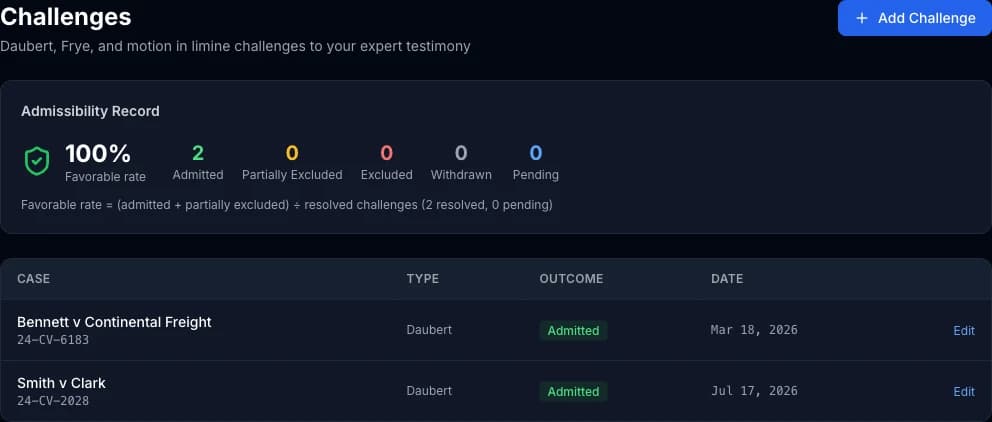
This is one of the strongest credibility signals you have with retaining counsel, and keeping it in one place beats reconstructing it from memory or scattered case files when someone finally asks.
Editing or Deleting a Challenge
Every row in the challenge list has an Edit link — use it once a pending challenge is decided, or to fill in a ruling summary you didn't have at the time. To remove a challenge entirely, open Edit and click Delete — you'll be asked to confirm before it's gone for good. There's no delete option from the list itself, only from the edit page.