Downloading Your Invoice (and Adding a Cover Letter)
How do I download invoice PDFs and send them to my client — and what's the cover letter option for?
Where to Find It
On any invoice's detail page, click PDF in the toolbar. That opens the Download PDF window with three options — pick whichever matches how you actually want to hand this invoice off.
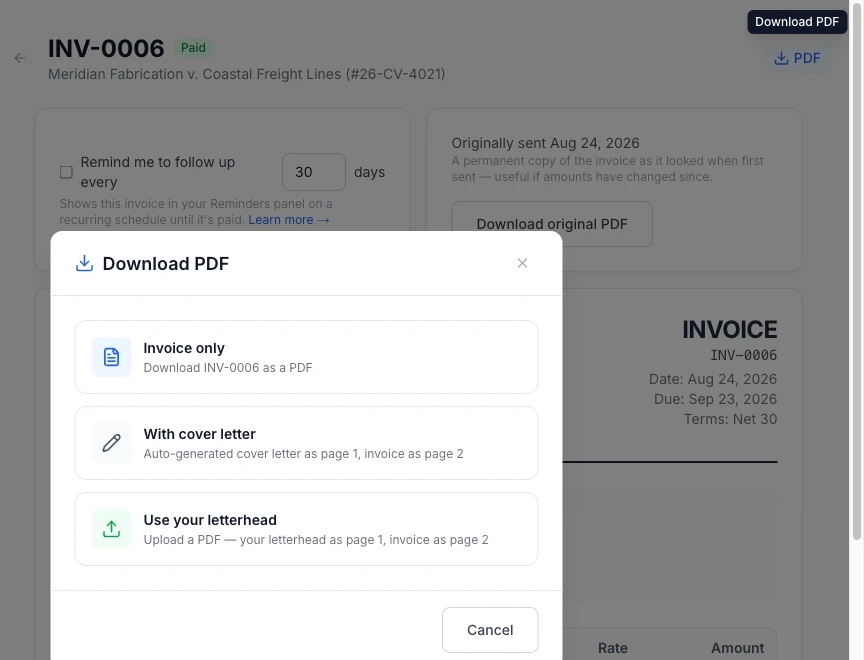
Invoice Only
The plain invoice, nothing added. This is the right choice most of the time — pick it and the PDF downloads immediately.
With Cover Letter
ExpertPractice drafts a short cover letter for you automatically and opens it in an editable text box before anything downloads — rewrite as much or as little of it as you want. Once you're happy with it, the letter becomes page 1 of the PDF, with the invoice itself starting on page 2. It's one file, ready to attach to an email or print as-is.
Use Your Letterhead
If you have your own firm letterhead as a PDF, upload it here (10MB max) and ExpertPractice merges it in as page 1, with the invoice following on page 2 — no separate tool needed to combine them yourself.
Sending Invoices to Multiple Payers
If this invoice is split between more than one payer, a Download All (.zip) button gives you the full invoice plus each payer's own copy in one download, instead of downloading each one separately.
ExpertPractice Doesn't Send It for You
None of these options email anything to your client — downloading is where ExpertPractice's part ends. Attach the PDF to an email yourself, print and mail it, or deliver it however you normally do, and then mark the invoice as sent once it's actually out the door.