Recurring Calendar Events
I have a call every week for this case — do I have to add it to the calendar one date at a time?
Setting Up a Repeating Event
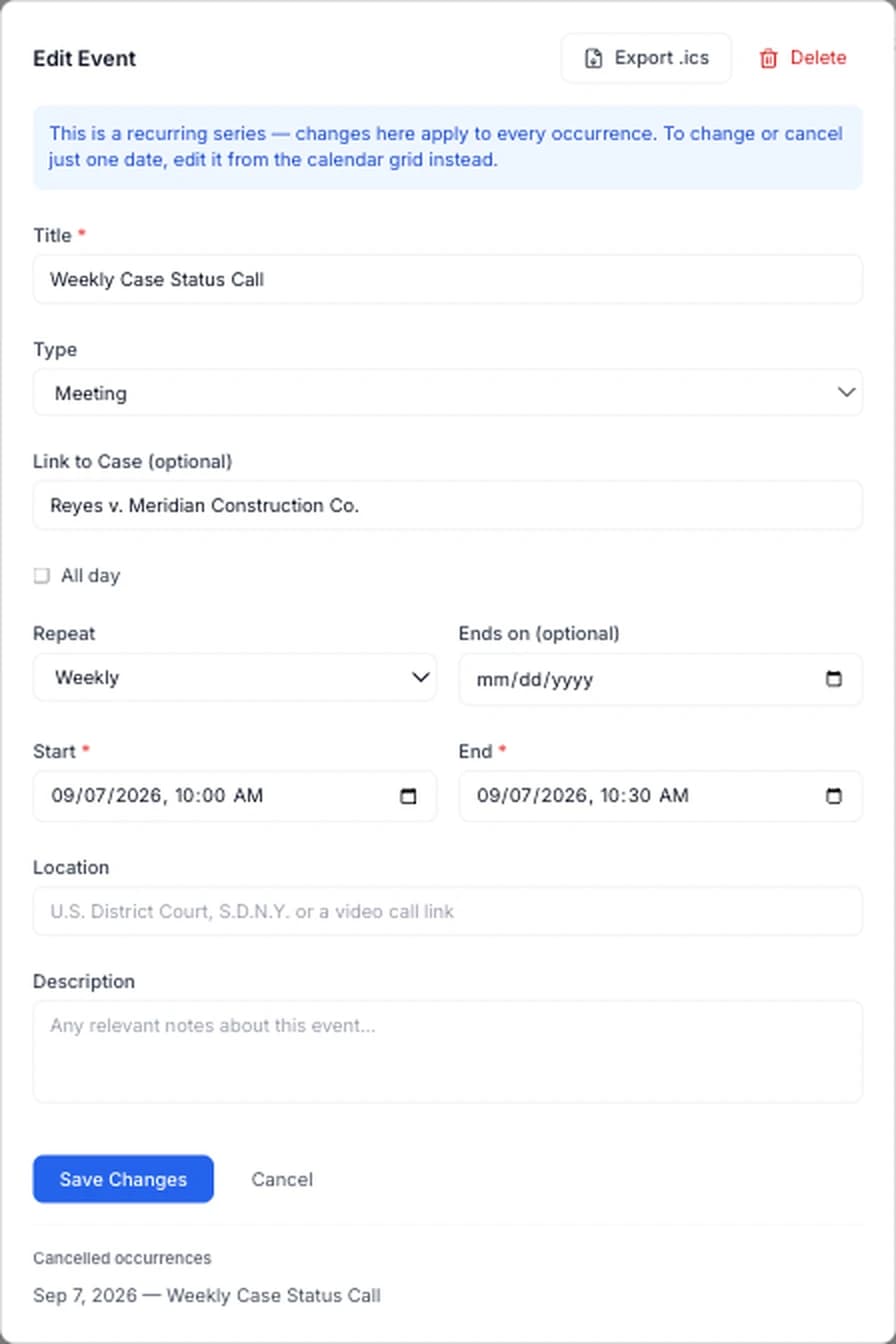
When adding or editing an event, set Repeat to Daily, Weekly, or Monthly. Optionally set Ends on to a date the series should stop — leave it blank for a series with no known end. Every occurrence this generates shows up on the calendar grid with a repeat icon, so you can tell a recurring event apart from a one-off at a glance.
Editing the Whole Series vs. One Date
Click any single occurrence on the grid to open just that date, with a choice to Edit this occurrence or Edit whole series instead. Editing a single occurrence — a rescheduled time, a different location for just that week — only affects that one date; the rest of the series is untouched. Editing the whole series changes the title, type, case link, and recurrence pattern for every past and future date at once.
Cancelling and Restoring a Single Date
To skip just one date — a call that got rescheduled, a week you're out of office — open that occurrence and choose Cancel this occurrence. It disappears from the calendar grid, but the rest of the series keeps going. If you cancelled one by mistake, open the whole-series editor: a Cancelled occurrences list at the bottom shows recent cancelled dates for that series. Clicking one opens it again with a Restore this occurrence button.

A cancelled occurrence never shows up in a case's This Week widget or Case Activity feed — restoring it is the only way to bring it back into either place.