Using the Calendar
How do I track meetings, depositions, and deadlines instead of just billable time?
Adding an Event
Open Calendar from the sidebar and click Add Event. Give it a title, pick a Type (Meeting, Phone Call, Court Appearance, Deposition, Testimony, Deadline, Travel, or Other), and set a start and end time — or check All day for something like a filing deadline that doesn't have a specific hour. If the event belongs to a specific engagement, use Link to Case to tie it there; leave it unlinked for anything general to your practice.
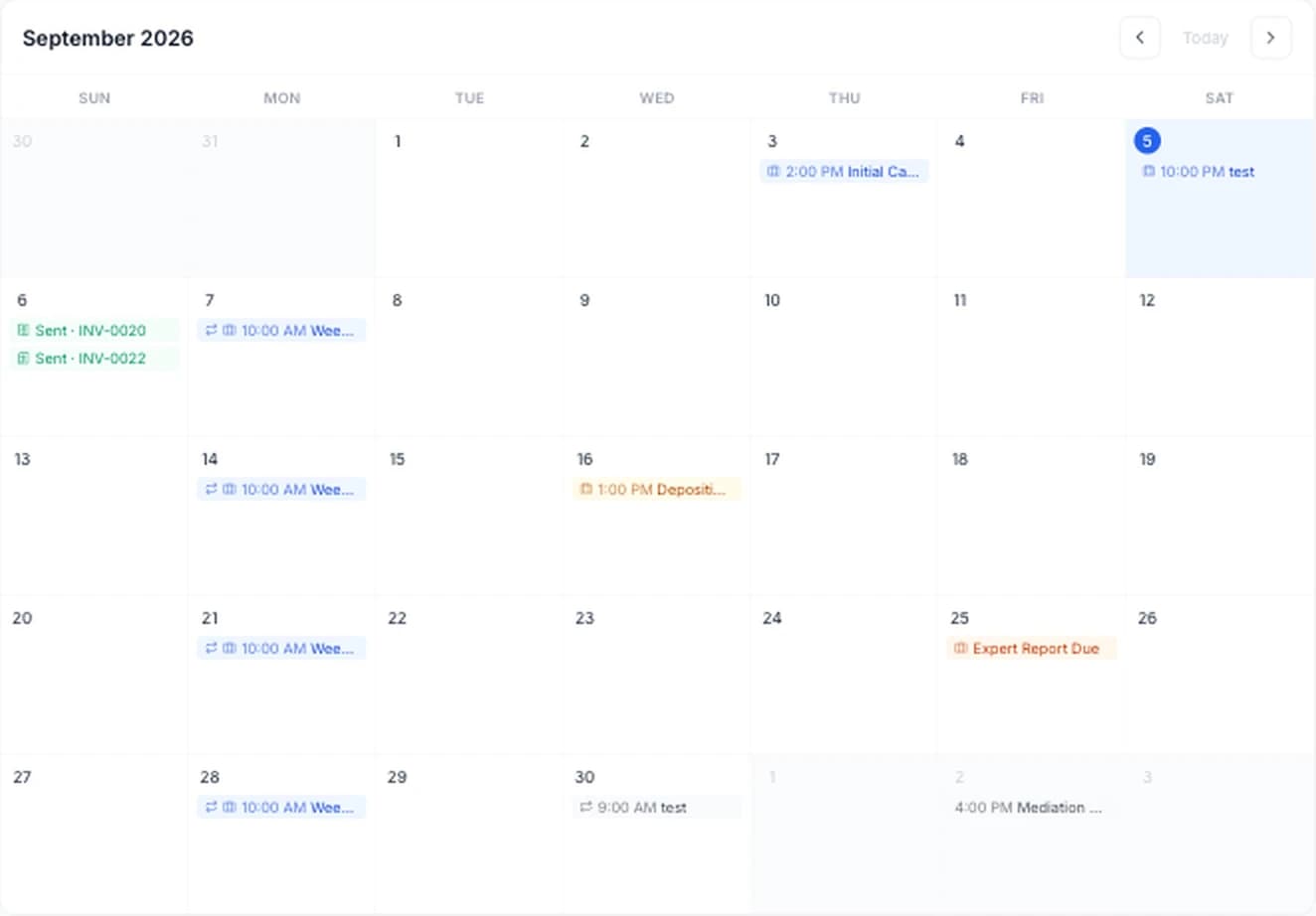
The month grid also shows invoice due/sent date markers automatically — those come from your invoices, not from anything you add here, and they're read-only on this page.
Viewing and Editing an Event
Click any event chip on the grid to open its details: the type, title, exact time, and the case it's linked to (if any) as a clickable link straight to that case. From there you can edit or cancel that date, or jump to editing the whole series if it repeats.
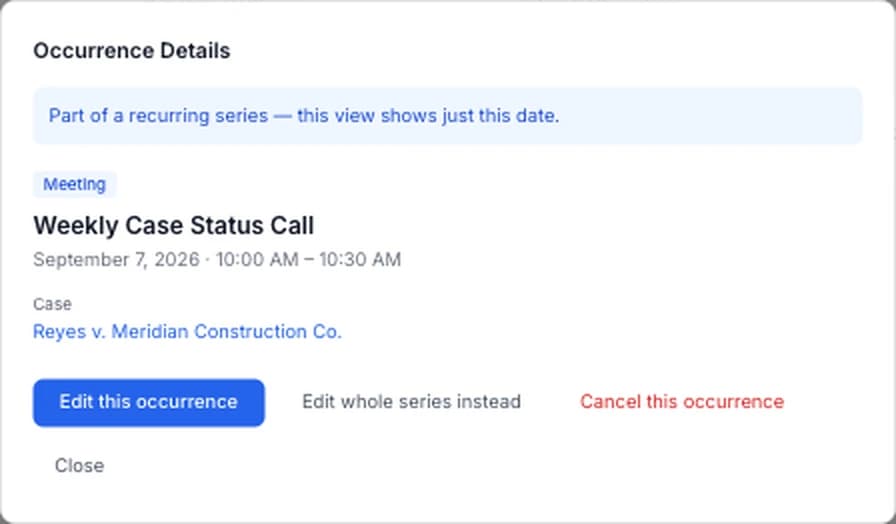
For a one-off event, editing here changes the event itself. For a recurring one, this view only ever affects the single date you clicked — see Recurring Calendar Events for how repeating series and their per-date exceptions work.
Deleting an Event
Open the event and choose Delete. For a recurring series, deleting from the whole-series editor removes every future and past occurrence at once — if you only want to remove a single date, cancel that occurrence instead of deleting the series.
Time Zones and Travel
Timed events show in your current time zone, the same way Google Calendar does: a 9:00 AM Pacific deposition reads 12:00 PM when you're in New York. If an event was created in a different zone than the one you're viewing it in, the event's own local time is shown beneath it. All-day events are dates, so they stay on the same day wherever you are.
ExpertPractice follows your device's time zone automatically, so the calendar, task due dates, and invoice due dates all update when you travel. To keep a specific zone instead, choose it under Settings → Time zone.