Using Tasks & To-Dos
Where do I keep track of things that need to get done but don't have a fixed time?
Tasks are a simple checklist for anything that isn't a calendar event or a time entry — "draft the report," "follow up with counsel," "renew my license." A task can optionally have a due date, and can optionally be linked to a case, but neither is required.
General vs. Case-Linked Tasks
When you add a task, the Case field defaults to No case. Pick a case instead and that task becomes case-linked — it shows up on that case's own page, counts toward that case's stats, and (once completed) logs itself into that case's Activity feed. Leave it as No case for something that isn't tied to any one engagement, like a license renewal or a general admin item.
You can change a task's case at any time by editing it — move it to a different case, or clear the Case field to make a case-linked task general again.
Where You'll Find Your Tasks
Tasks show up in three places, all reading from the same underlying list:
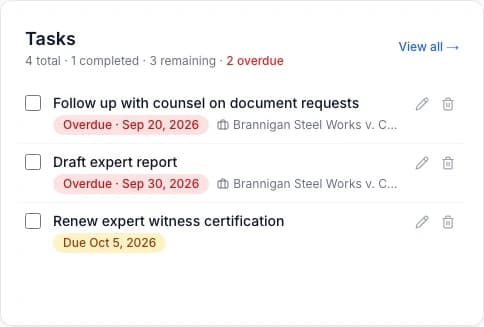
- Dashboard — a Tasks widget shows your open tasks with a View all link through to the full list.
- A case's detail page — its own Tasks section shows every task linked to that case, open and completed.
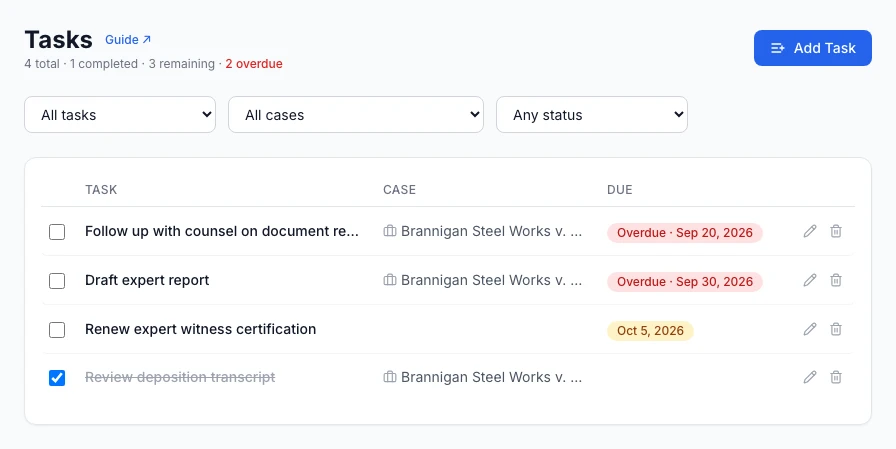
- The standalone Tasks page — everything at once, laid out as a table and filterable by scope, case, and status (see below). Find it in the sidebar.
A task with a due date also appears as a marker on your Calendar — see Task Due Dates & Case Activity for how that works.
Adding and Editing a Task
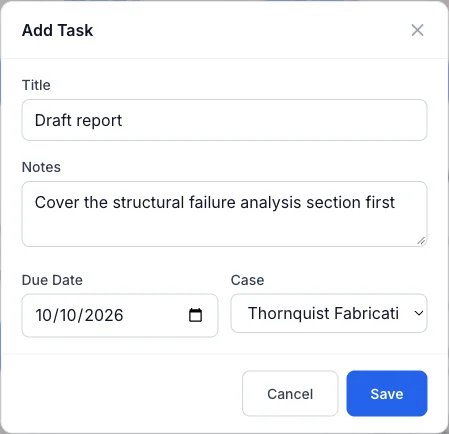
Click Add Task from any of the three surfaces above. A title is the only required field — notes, a due date, and a case are all optional. Editing an existing task (the pencil icon) opens the same form pre-filled.
Completing, Overdue, and Deleting
Check a task's box to mark it complete — it moves to the bottom of the list with its title struck through. Uncheck it to mark it incomplete again at any time.
A task's due date appears as a colored pill so you can see what needs attention at a glance: red and labeled Overdue when the date has passed and the task is still open, amber when it's due within the next seven days, and gray otherwise. Completed tasks fade to a muted gray. Overdue tasks are flagged the same way on the Calendar.
The trash icon deletes a task after a confirmation — this can't be undone. Deleting a case doesn't affect its general tasks; deleting a task doesn't affect its case.
Time Zones and Travel
"Today" and "overdue" follow your current time zone. A task due on the 14th stays due through the end of the 14th where you are, and turns overdue at midnight that night. When you travel, ExpertPractice notices your device's time zone and updates automatically. You can pin a specific zone under Settings → Time zone if you'd rather it stay put.
Filtering the Standalone Tasks Page
The full Tasks page lays your tasks out as a table with Task, Case, and Due columns. Click a task's case name to jump straight to that case's page.
Three filters sit above the table: Scope (All tasks, Case-linked, or General), Case (All cases, or one specific case), and Status (Any status, Open, Overdue, or Completed). Combine them to answer things like "what's overdue across all my cases," "what general to-dos are still open," or "what's left on the Brannigan case." Choosing a specific case resets Scope to All tasks, since every task for a case is case-linked by definition.