Understanding Your Case Activity Feed
Where can I see everything that's happened on a case — without opening five different tabs?
What Shows Up in the Feed
Every case detail page has a Case Activity card, grouped by date with the most recent first. It pulls together everything tied to that case into one timeline: time entries, notes you add yourself, documents you upload, invoices as they're created/sent/paid, expenses, and payments. You don't have to check the Time Log, Documents, and Invoices pages separately to reconstruct what happened on a case — it's all here in the order it actually occurred.
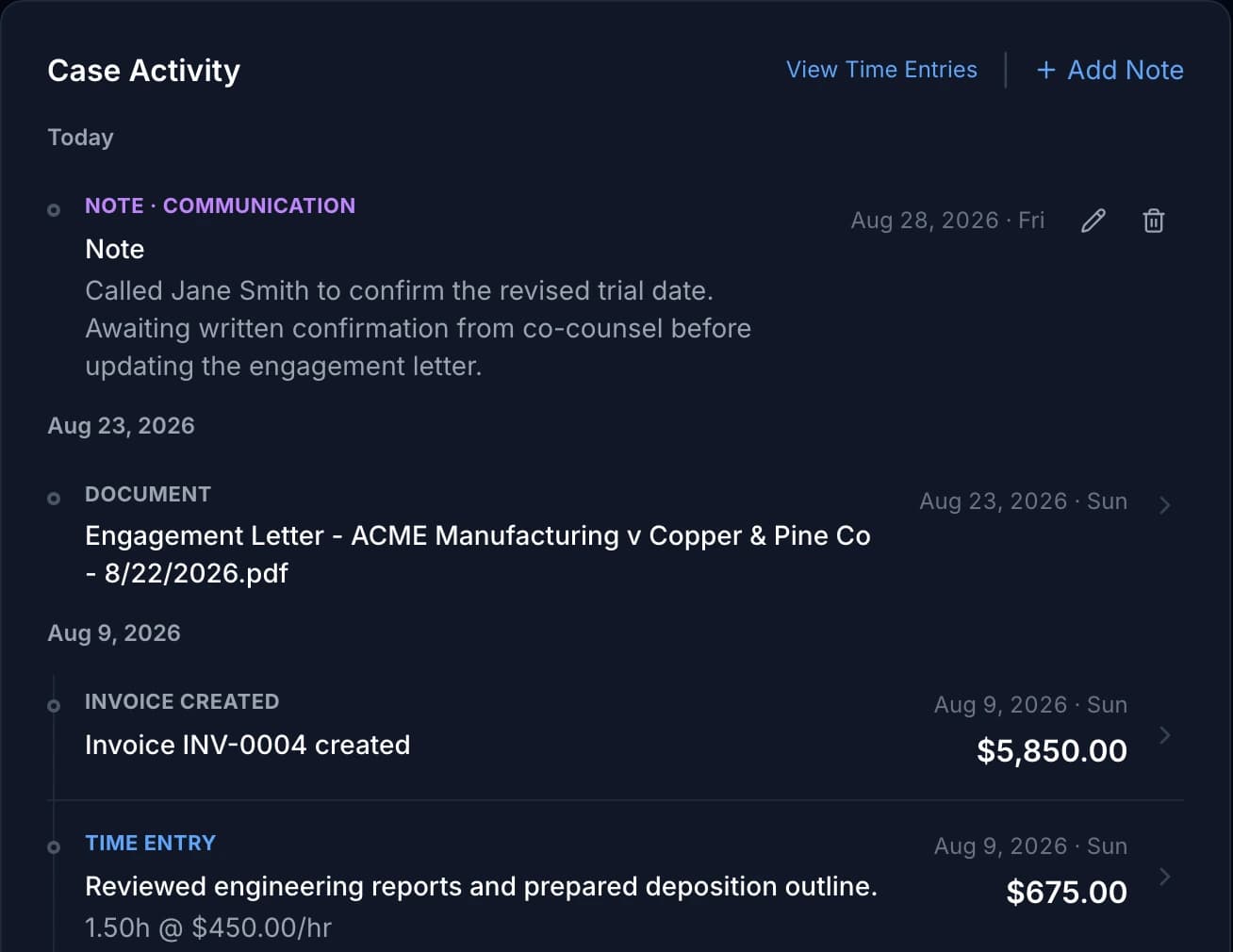
Only the most recent page loads at first. If a case has been running long enough that there's more history than fits, a Load older activity button appears at the bottom of the feed — click it to fetch the next page without leaving the case.
Adding a Note
Notes are the one thing on this feed you write yourself — everything else is generated automatically by other actions in the app. Click + Add Note at the top of the card, write what you need to remember, and pick a category: General, Rate Change, Billing, or Communication. The category shows as a small label above the note so you can scan the feed for, say, every past phone call with an attorney without rereading everything.
Once saved, a note gets its own edit (pencil) and delete (trash) icons — nothing else in the feed does, since every other row is a record of something that already happened elsewhere in the app. Editing a note updates it in place and marks it Edited; deleting it removes it from the feed permanently.
Notes, Tasks, and Events on Your Cases List
You don't have to open a case to see where it stands. Each case card on the Cases list shows your latest note, your next open task (with how many others are open), and the next calendar event for that case. Tap + Note / Task on any card to add a note or a task without opening the case. Notes are only for you and never appear on invoices.
You can also act on those rows right from the card. Tick the checkbox beside a task to mark it done (an Undo message appears for a few seconds in case you tapped it by mistake). Use the … menu on a note or task to Edit or Delete it; deleting always asks you to confirm first. Tap the event to open it, the same way you would from the Calendar. The card shows one note and one task at a time, so open the case to work with the rest.
Clicking Into an Item
Where a row takes you depends on what it represents. Invoice events (created, sent, paid) open that invoice's detail page. Documents jump to the Documents list filtered to this case. Expenses and payments jump down to their own sections further down the same case page, since neither has a page of its own. Notes never link anywhere — they're already editable right where they sit.
Time entries are the one exception: clicking one opens it for editing in a modal, right there on the case page, instead of navigating to the standalone Time Log edit screen.
Locked Time Entries
A time entry that's already on a sent invoice shows a lock icon instead of a chevron, and the whole row is dimmed and unclickable. Hover the lock to see why:
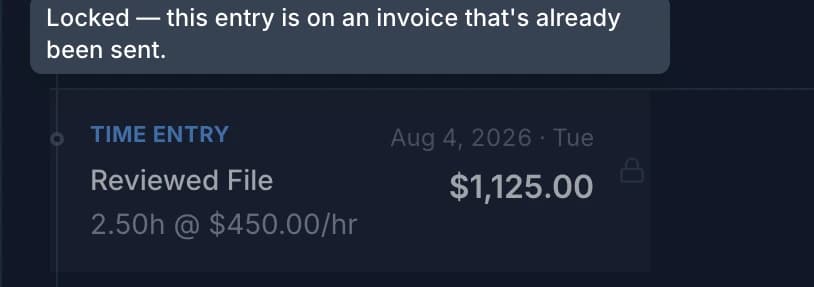
This is the same audit-trail protection described in What Happens When You Mark an Invoice as Sent— once a client has a copy of an invoice, the hours and rate behind it can't quietly change out from under them. To fix a mistake on a locked entry, void the invoice it's on first.