Tracking Time with the Start Timer
Do I have to remember my hours after the fact, or can ExpertPractice just time me while I work?
Starting a Timer
A Start Timer button is available in three places: the Dashboard's Quick Time Entry card (no case required — good for when you're not sure yet which case this work belongs to), a specific case's detail page (ties the timer to that case from the start), and the Time Log page. All three start the same underlying timer — where you start it just decides whether a case is pre-filled when you eventually stop it.
Only one timer can run at a time. Once it's running, the Start Timer button disappears everywhere it would otherwise show up — there's nothing to start a second one with by mistake.
While It's Running
A sticky banner appears at the top of every page while the timer runs, showing the elapsed time and a Stop button — it stays visible no matter where you navigate in the app, so you can go check a document or answer an email without losing track of it or having to return to wherever you started it.

The timer keeps running even if you close the tab or lose your internet connection — elapsed time is always calculated from the moment you started it, not by counting up in the background, so there's nothing to lose track of. It's also backed up server-side, so it survives clearing your browser data mid-session.
Stopping and Logging Time
Click Stop and a confirmation dialog shows your actual elapsed time alongside an editable hours to log field, automatically rounded up to the nearest quarter hour. Adjust it if you took a break you don't want billed, pick the case if one wasn't already set, and choose what happens next:
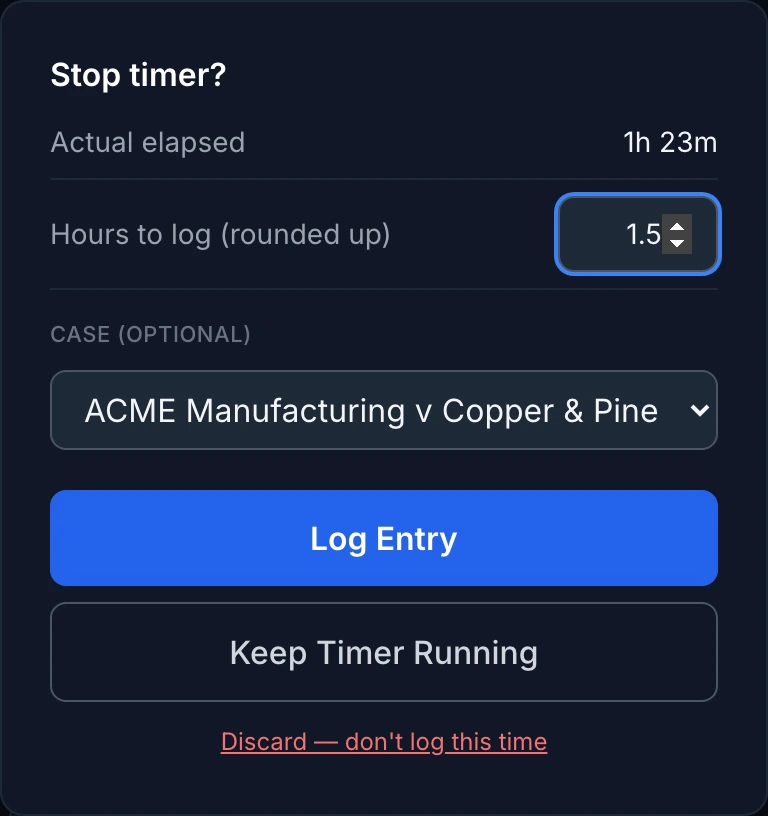
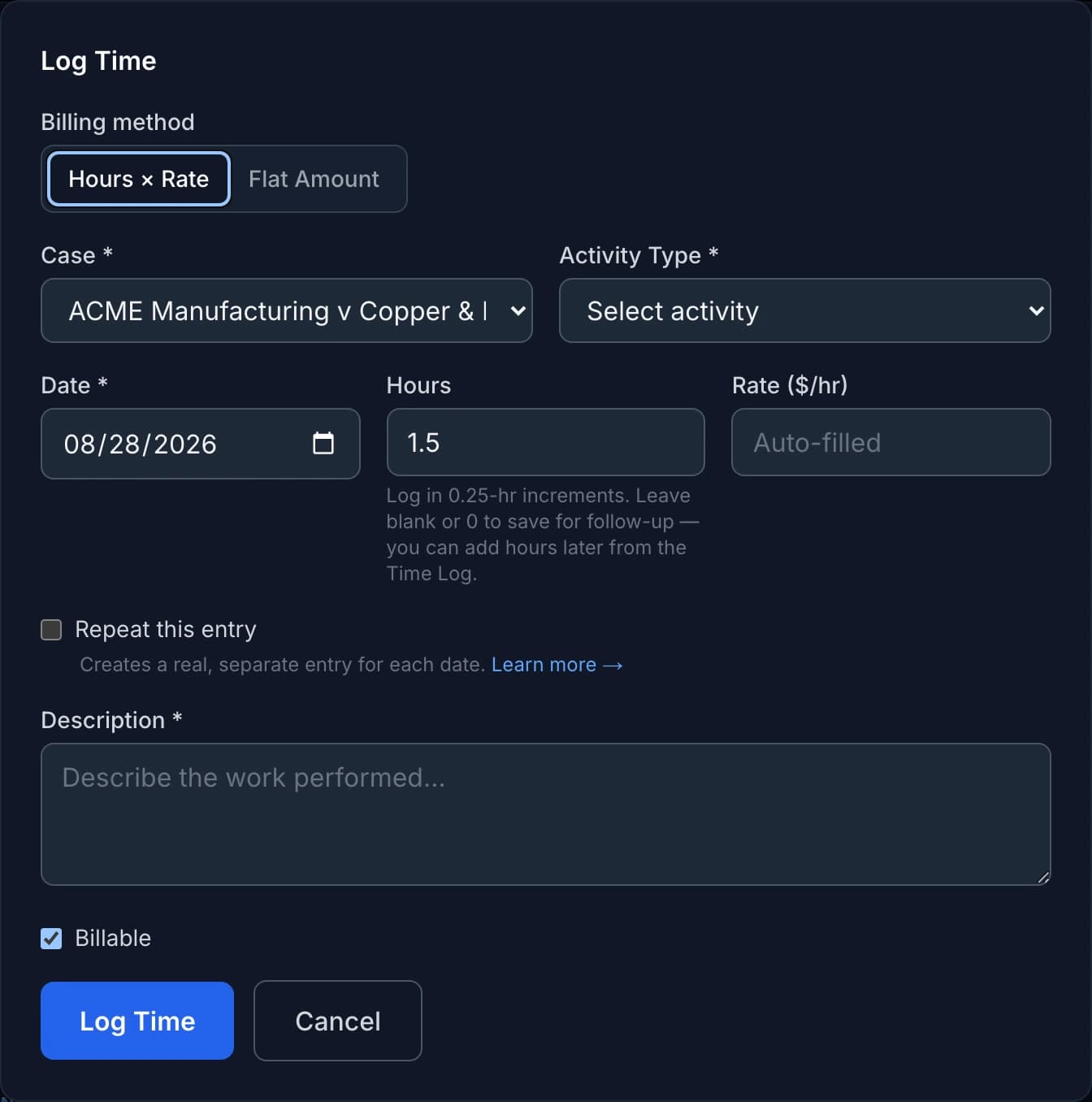
- Log Entry — clears the timer and opens the regular time entry form, pre-filled with the hours and case you just confirmed. You still choose an activity type and write a description before saving.
- Keep Timer Running — closes the dialog and keeps the timer going, for when Stop was a misclick.
- Discard — clears the timer without logging anything, for when you started it by accident or the time genuinely shouldn't be billed.
Choosing Log Entry hands you a normal Log Time form with the hours and case already filled in — you're not creating anything different from a manual time entry, the timer just saved you from watching the clock.